> ## Documentation Index
> Fetch the complete documentation index at: https://guide.cloudsania.com/llms.txt
> Use this file to discover all available pages before exploring further.
# How to Set Up Virtual Servers Connector
> Step-by-step guide to setting up Virtual Servers connector in Cloudsania
## Overview
This guide explains how to set up and configure a [Virtual Servers connector](/cloud-connectors/vps-connector#authentication-methods) in Cloudsania, allowing you to manage virtual private servers across different providers.
**Prerequisites**
1. You have an active Virtual Private Server (VPS)
2. Valid SSH key
server credentials
## Setting Up a Virtual Servers Connector
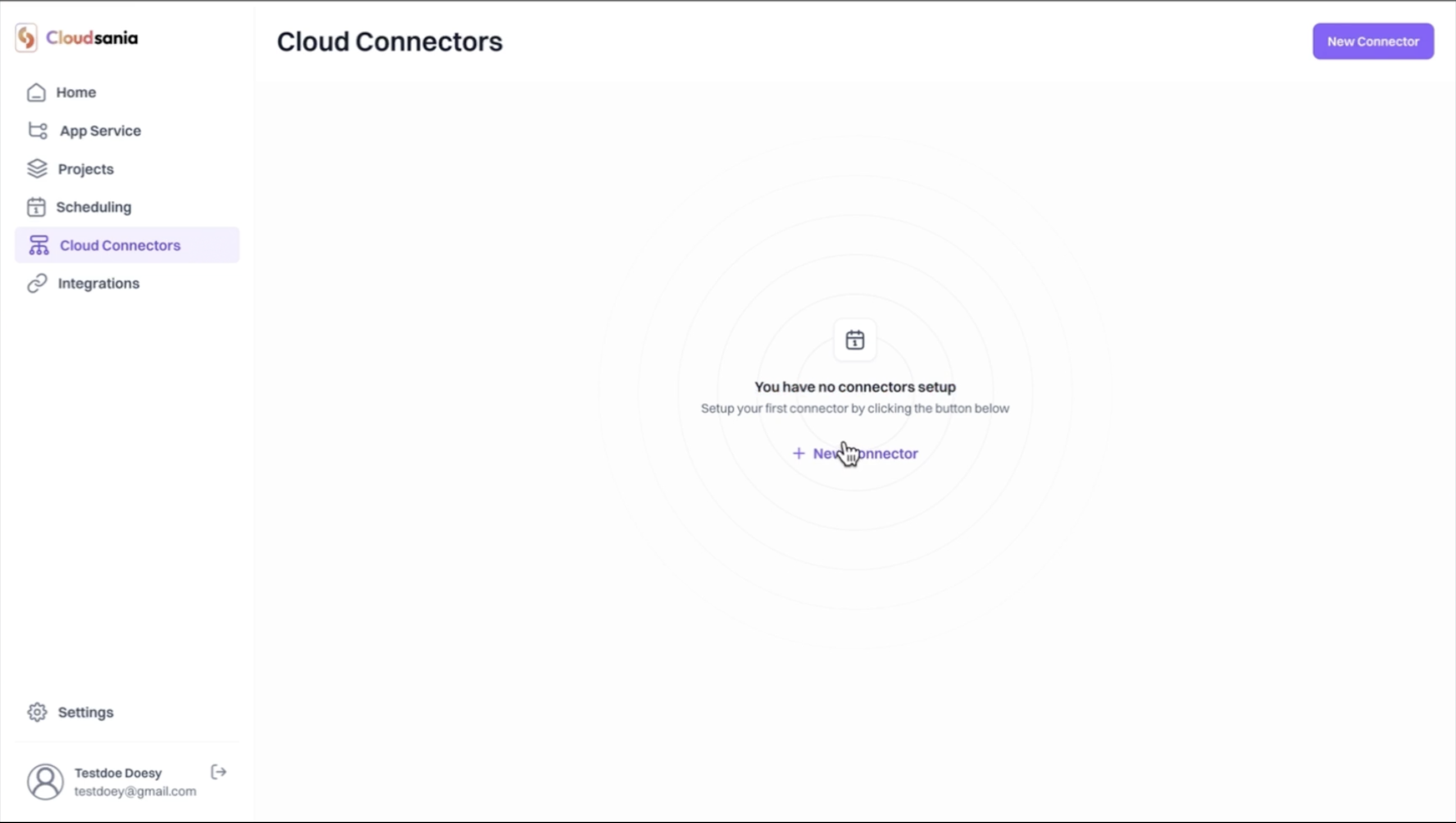
1. On the side navbar, click on "Cloud Connnectors".
2. Click on "New Connector" button on the Cloud Connector Page.
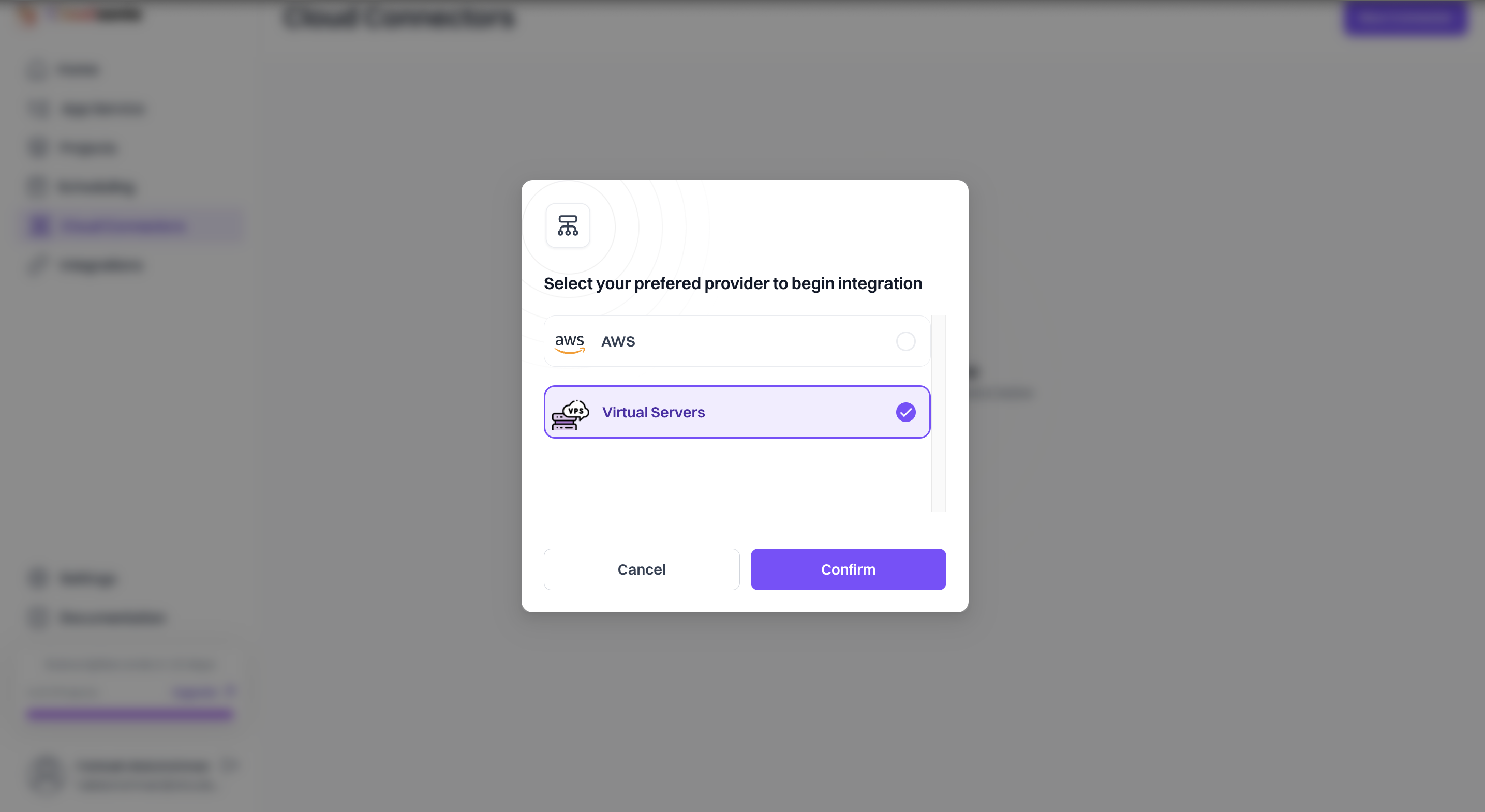
 3. Select the "Virtual Servers" option from the list of cloud providers displayed and click on the "Confirm" button.
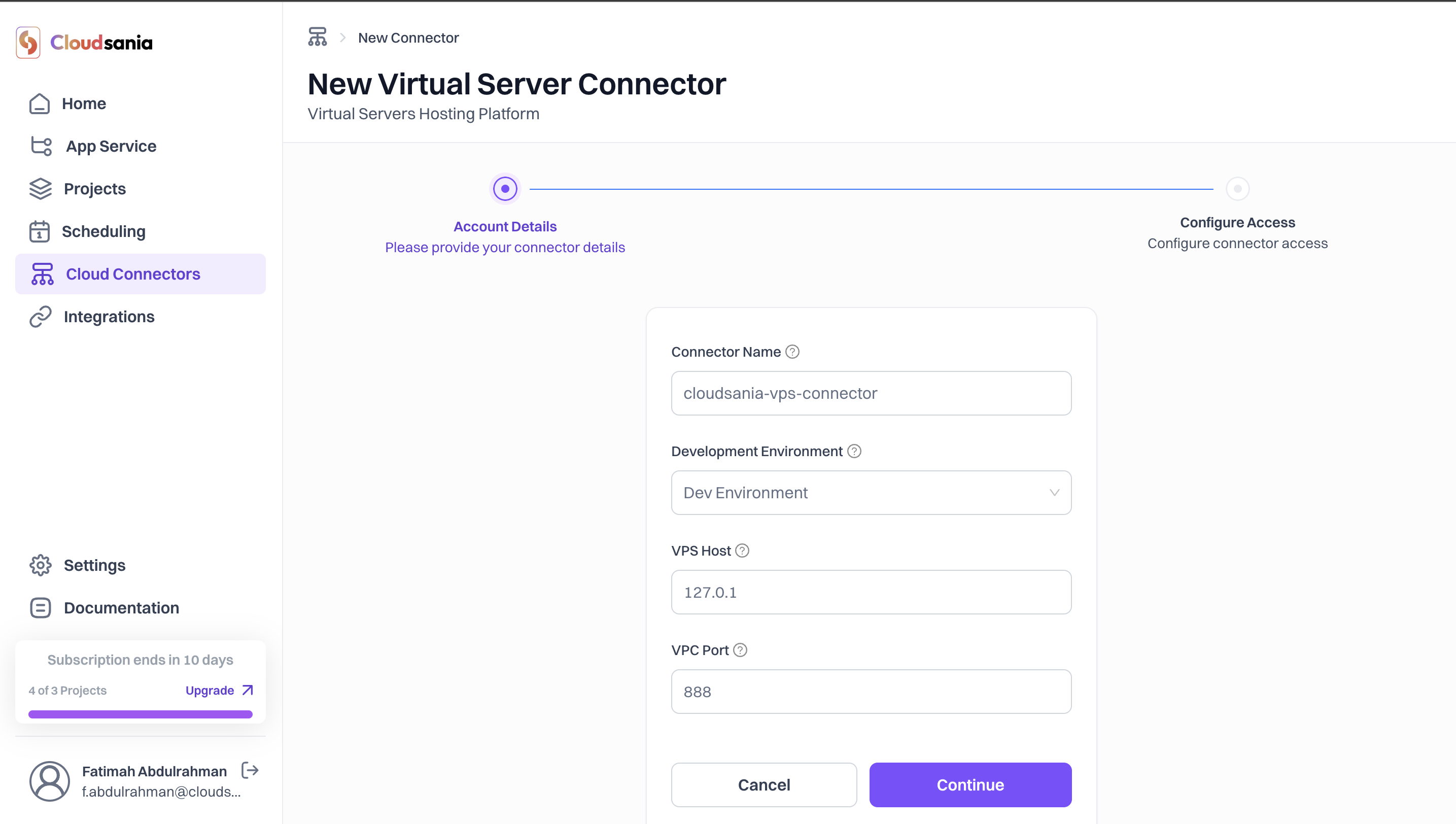
 4. Provide Your Connector Details.
* Enter Your Connector Name.
* Select your environment from the dropdown list.
* Specify your VPS Host and Port
* Click on the "Continue" button
4. Provide Your Connector Details.
* Enter Your Connector Name.
* Select your environment from the dropdown list.
* Specify your VPS Host and Port
* Click on the "Continue" button
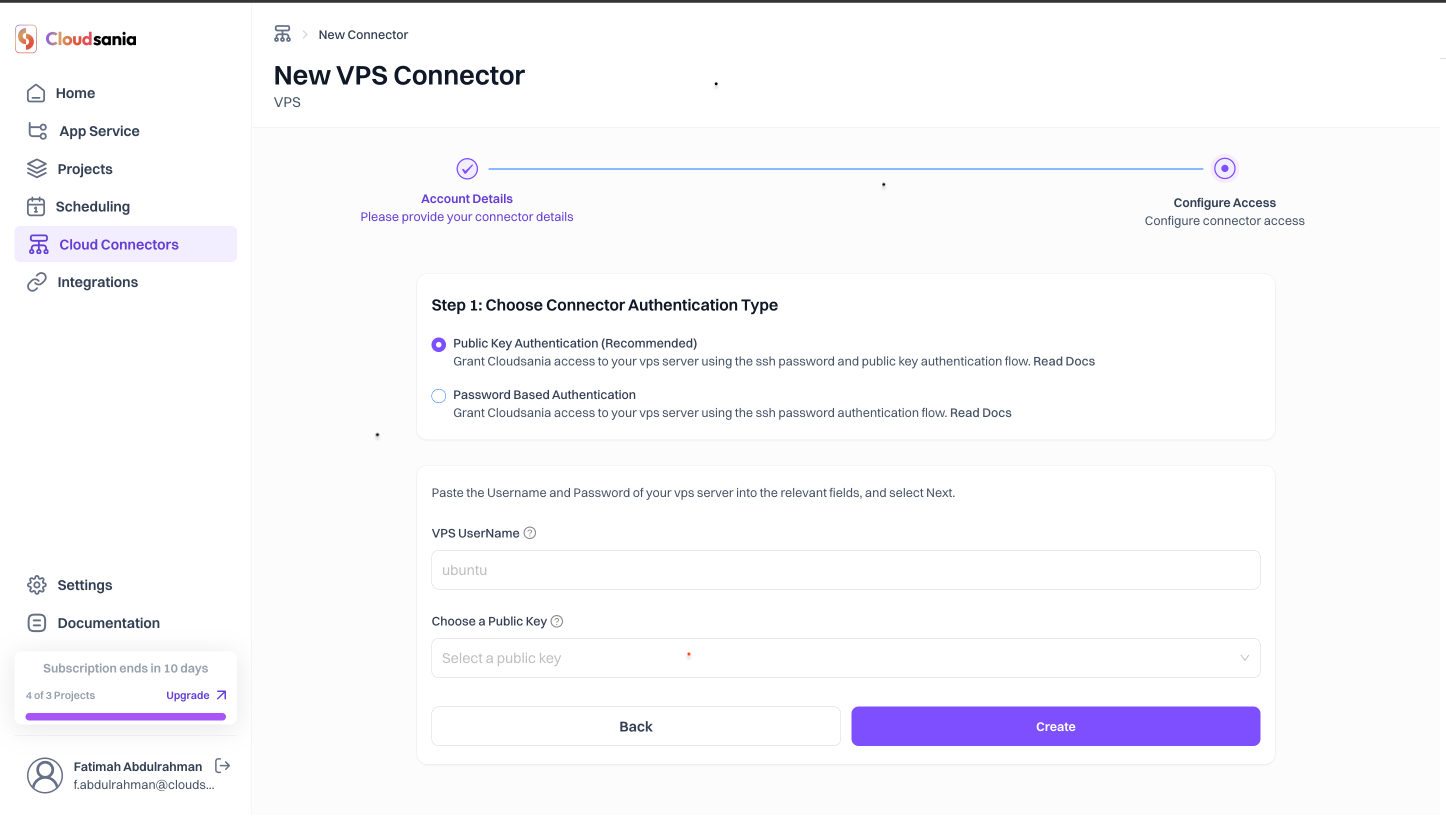
 5. Configure Your Connector Access. Choose your preferred [connector authentication type](/cloud-connectors/vps-connector#authentication-methods).
Grant Cloudsania access to your VPS server using public key authentication flow.
6. Enter your VPS Username
7. Click on the dropdown to choose your public key- You can create an [SSH key](/account-settings/ssh-key-setup) if none exist for your organisation.
8. Click on the "Create" button
5. Configure Your Connector Access. Choose your preferred [connector authentication type](/cloud-connectors/vps-connector#authentication-methods).
Grant Cloudsania access to your VPS server using public key authentication flow.
6. Enter your VPS Username
7. Click on the dropdown to choose your public key- You can create an [SSH key](/account-settings/ssh-key-setup) if none exist for your organisation.
8. Click on the "Create" button
 9. Upon successful creation, your VPS connector will now appear on the "Cloud Connectors" page and the status marked as "Active"
Your Virtual Server Connector is now successfully configured and ready for use! 🎉
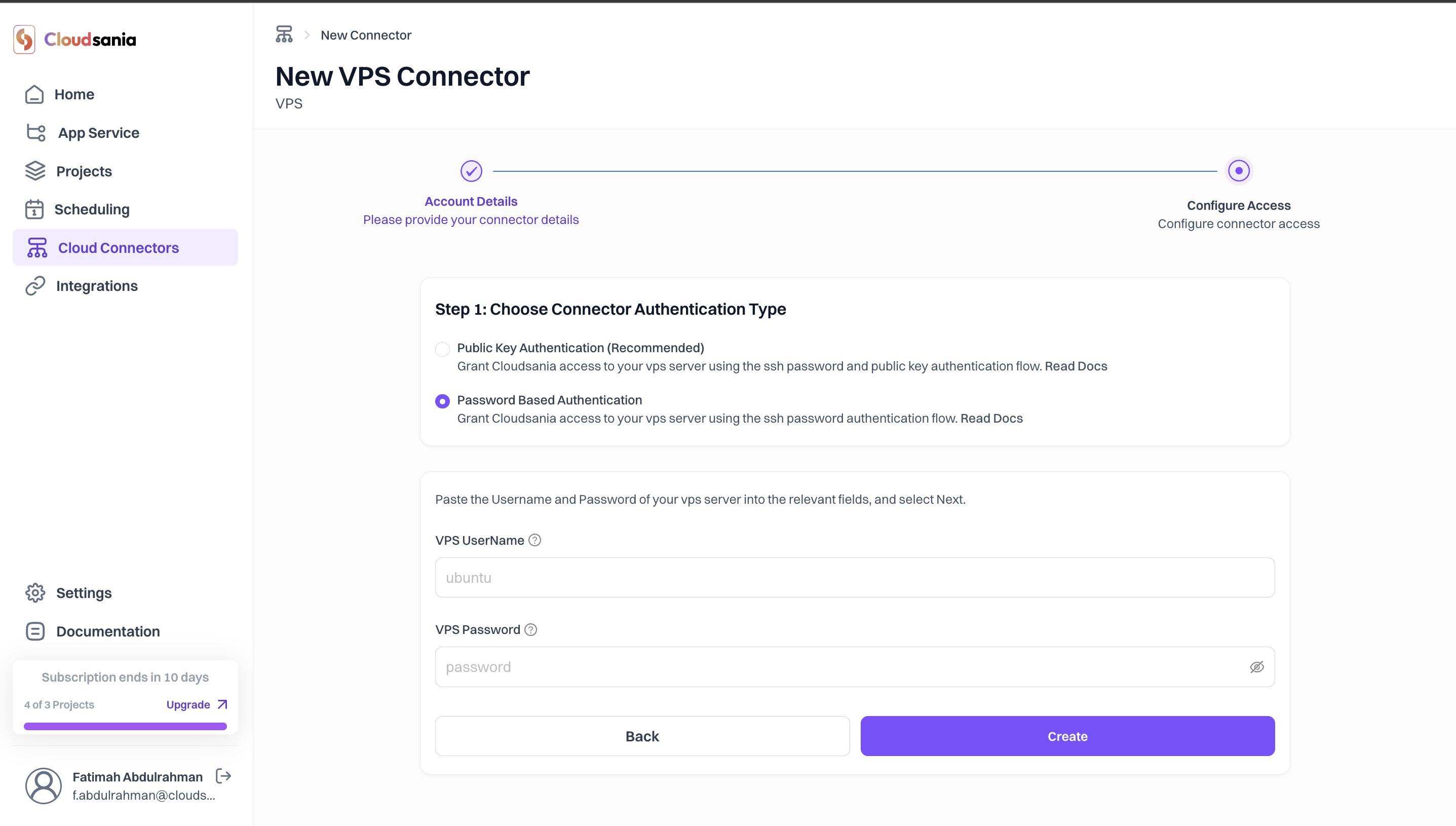
Grant Cloudsania access to your VPS server using the SSH password authentication flow.
6. Enter your VPS Username and Password in the relevant fields
7. Click on the "Create" button
9. Upon successful creation, your VPS connector will now appear on the "Cloud Connectors" page and the status marked as "Active"
Your Virtual Server Connector is now successfully configured and ready for use! 🎉
Grant Cloudsania access to your VPS server using the SSH password authentication flow.
6. Enter your VPS Username and Password in the relevant fields
7. Click on the "Create" button
 8. Upon successful creation, your VPS connector will now appear on the "Cloud Connectors" page and the status marked as "Active"
Your Virtual Server Connector is now successfully configured and ready for use! 🎉
8. Upon successful creation, your VPS connector will now appear on the "Cloud Connectors" page and the status marked as "Active"
Your Virtual Server Connector is now successfully configured and ready for use! 🎉